Dashboard quick actions and getting-started links
Reference for the Dashboard surfaces that surface onboarding links, quick actions, and summary panels in Prismaya.
The Dashboard provides an organization-level snapshot and surfaces onboarding items and shortcuts so you can begin common setup tasks without leaving the main Dashboard screen. The sections below describe the Getting started panel, the summary panels and quick actions the page lists, and the navigation and account controls.
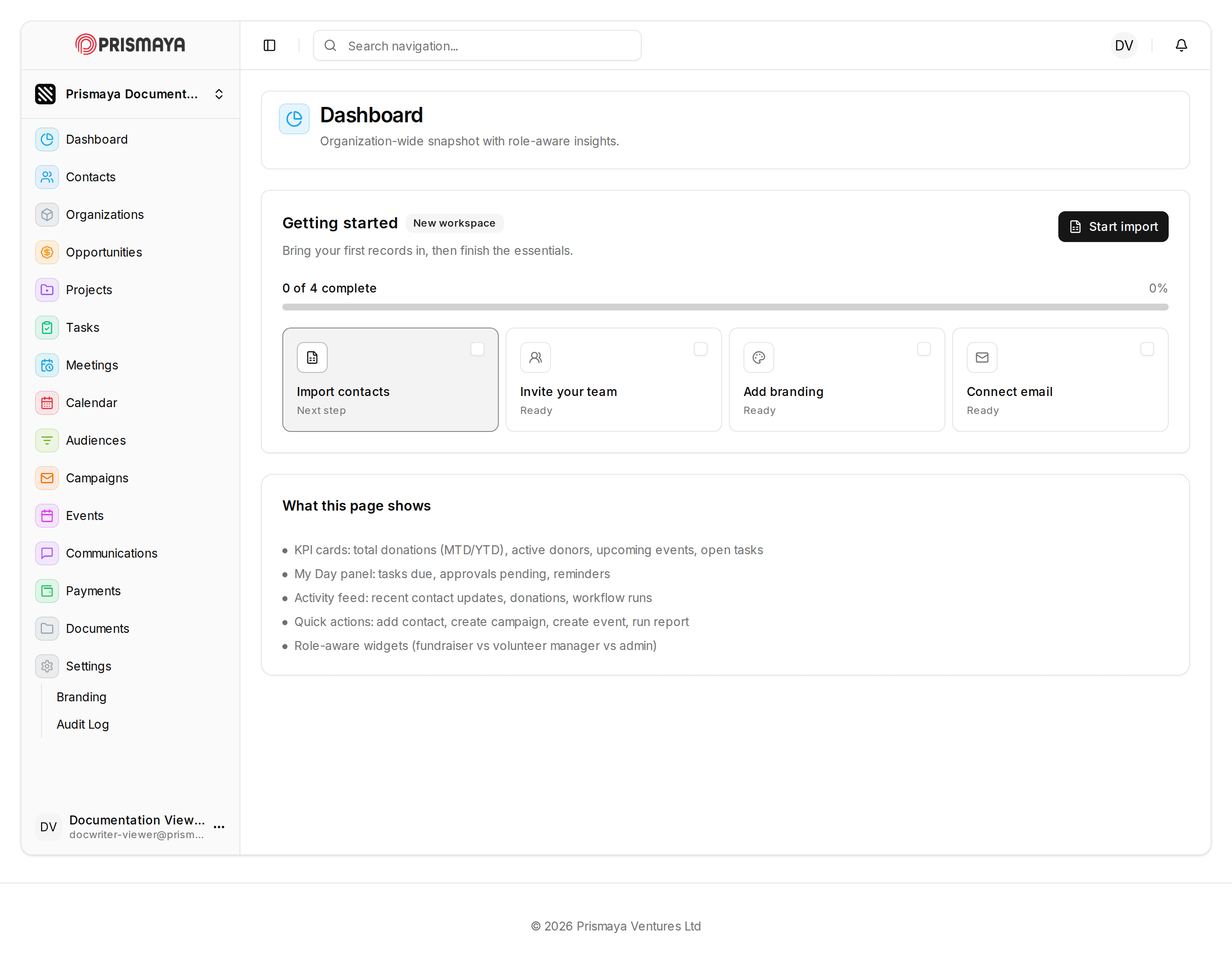
Getting started panel
A Getting started pane is shown on the Dashboard with a checklist-style progress indicator and numeric status. The example shows '0 of 4 complete' and '0%'.
Four horizontally arranged setup cards are grouped under Getting started. The card labels and their short status lines are: Import contacts (subtext: 'Next step'), Invite your team (subtext: 'Ready'), Add branding (subtext: 'Ready'), and Connect email (subtext: 'Ready').
A button labeled Start import is positioned to the right of the Getting started area and is visually associated with that pane.
What this page shows
KPI cards: examples include total donations (MTD/YTD), active donors, upcoming events, and open tasks.
My Day panel: tasks due, approvals pending, and reminders.
Activity feed: recent contact updates, donations, and workflow runs.
Quick actions: shortcuts for common tasks such as add contact, create campaign, create event, and run report.
Role-aware widgets: the Dashboard surface includes widgets that vary by user role (examples shown include fundraiser, volunteer manager, and admin).
Navigation and account controls
Left navigation sidebar: visible, listed in vertical order as Prismaya Document..., Dashboard, Contacts, Organizations, Opportunities, Projects, Tasks, Meetings, Calendar, Audiences, Campaigns, Events, Communications, Payments, Documents, Settings, with Branding and Audit Log indented beneath Settings.
Top bar controls: a centered search field with placeholder text 'Search navigation...', a circular avatar showing the initials 'DV', and a notification bell icon.
Footer: displays © 2026 Prismaya Ventures Ltd.
Documented surfaces
This reference describes these Dashboard surfaces: the Main Dashboard panel (title 'Dashboard'), the Getting started pane within the Dashboard, and the left navigation sidebar.
Notes and constraints
The sidebar labels listed above are presented as navigation labels only; their contents or behavior are not described here.
The Getting started cards and the Start import control are shown on the Dashboard as onboarding entry points; subsequent screens or import flows are outside the scope of this reference.