Branding settings: manage outward-facing identity
Understand branding settings: manage outward-facing identity and when it is useful in Prismaya.
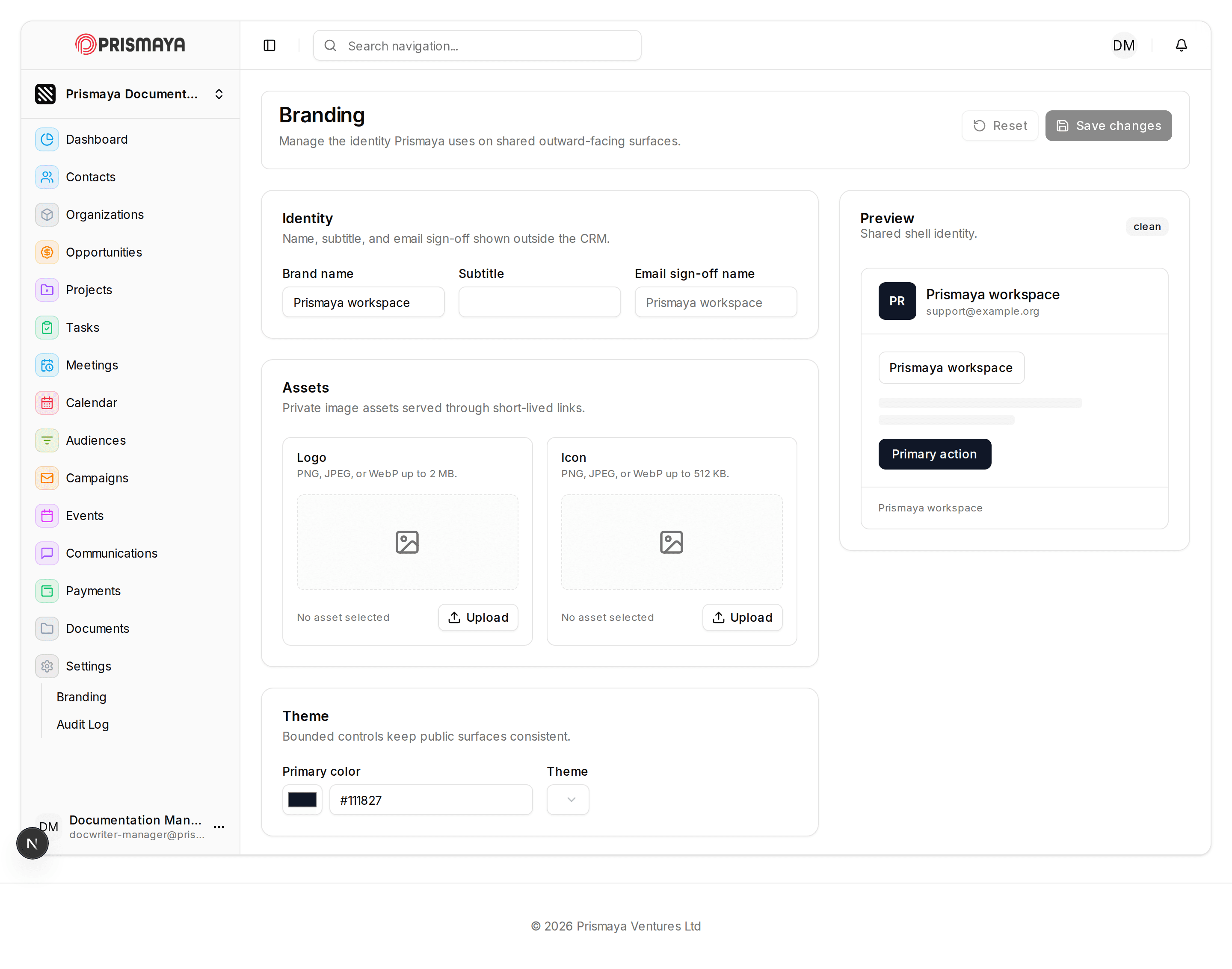
The Branding settings page centralises the identity Prismaya uses on shared outward-facing surfaces. Use the page to edit name and support contact details, upload logo and icon assets within stated limits, and adjust theme-related values. A live Preview panel at right reflects the identity elements shown on public surfaces.
At a glance
What this page contains: grouped controls for Identity, Assets, and Theme, plus a Preview panel that shows how shared shell identity elements will appear.
Top-level controls for the page include buttons labeled Reset and Save changes. Asset upload controls are labeled Upload. The Preview panel contains a control labeled Primary action.
Documented surfaces: the Branding settings page (main content area) and the Preview panel (right column).
Identity
Fields available: Brand name, Subtitle, and Email sign-off name. These fields are grouped in the Identity section so you can set the text that appears on outward-facing surfaces.
The Email sign-off name field includes placeholder/hint text to help decide what to enter. No fields in this section are marked as required.
Assets
Upload two private image assets used on public surfaces: Logo and Icon. Each asset is presented in its own box with an Upload button and a placeholder when no asset is selected.
Explicit file constraints: Logo helper text states: PNG, JPEG, or WebP up to 2 MB. Icon helper text states: PNG, JPEG, or WebP up to 512 KB.
Theme
Theme controls include a Primary color control (a color swatch with a hexadecimal value) and a Theme selector presented as a dropdown control. These bounded controls keep public surfaces consistent.
No theme-related fields are marked as required.
Preview panel
The Preview panel displays a shared shell identity composed of an avatar, a display name, a support email, and a primary action button labeled Primary action. The panel provides a visual reference for how the current identity settings will appear on shared surfaces.
The Preview is a representation only; it does not indicate whether edits are saved or persisted.
Controls and state
Page-level controls in the form: Reset and Save changes (top-right). Asset boxes include Upload buttons.
Fields throughout the page are not marked as required. Treat the displayed helper text for Logo and Icon as the authoritative upload constraints.
Dashboard quick actions and getting-started links
Reference for the Dashboard surfaces that surface onboarding links, quick actions, and summary panels in Prismaya.
Contacts: list, search, filters, and column customization
Understand the Contacts list view in Prismaya: what information is presented, what list controls are visible, and which table columns and summary metrics appear on the page.