Create a task from CRM context
Create a task with project context, ownership, priority, timing, and a clear description.
Key guidance
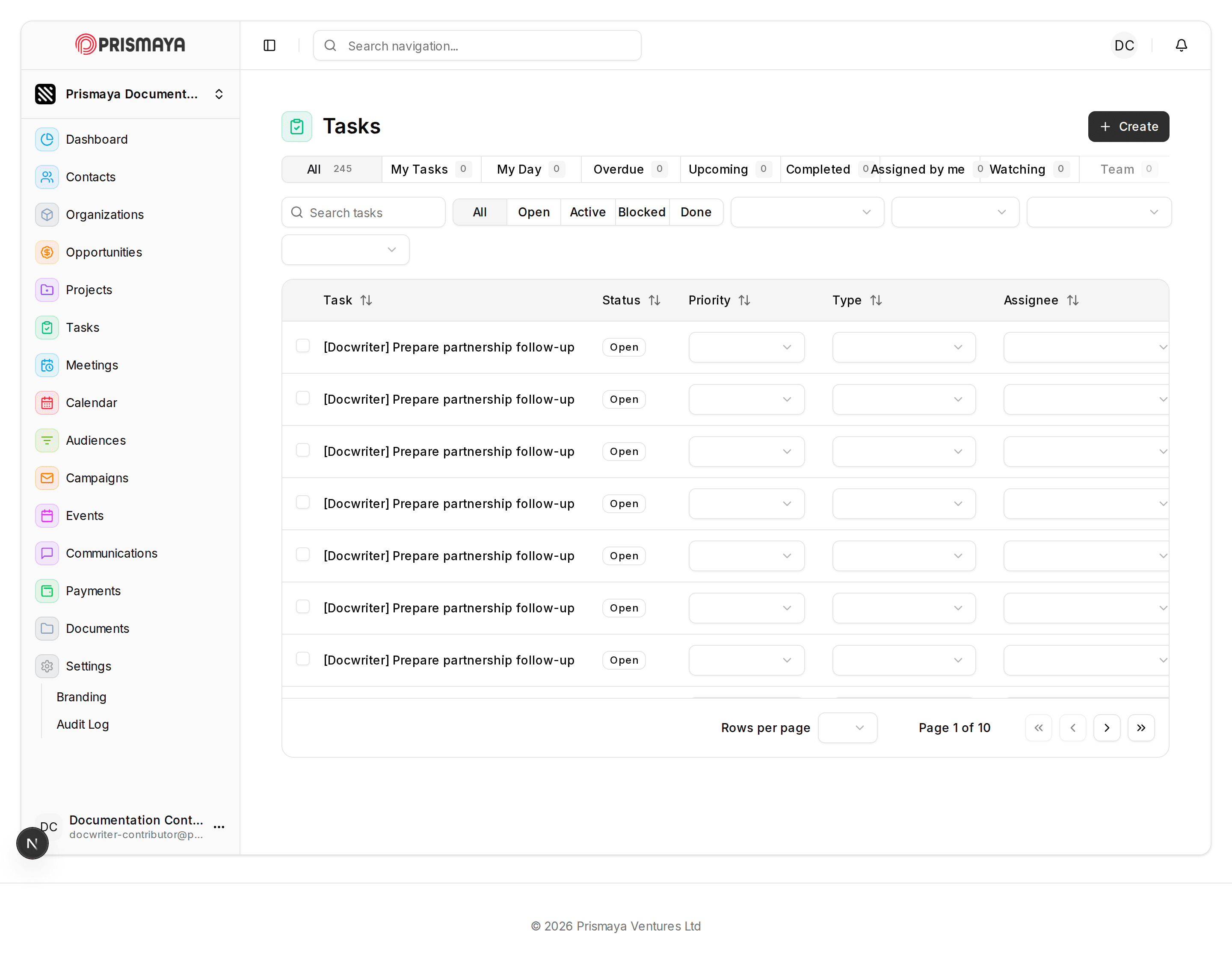
The New task modal is opened from the Tasks page via the Create workflow (controls labelled Create and Task are present).
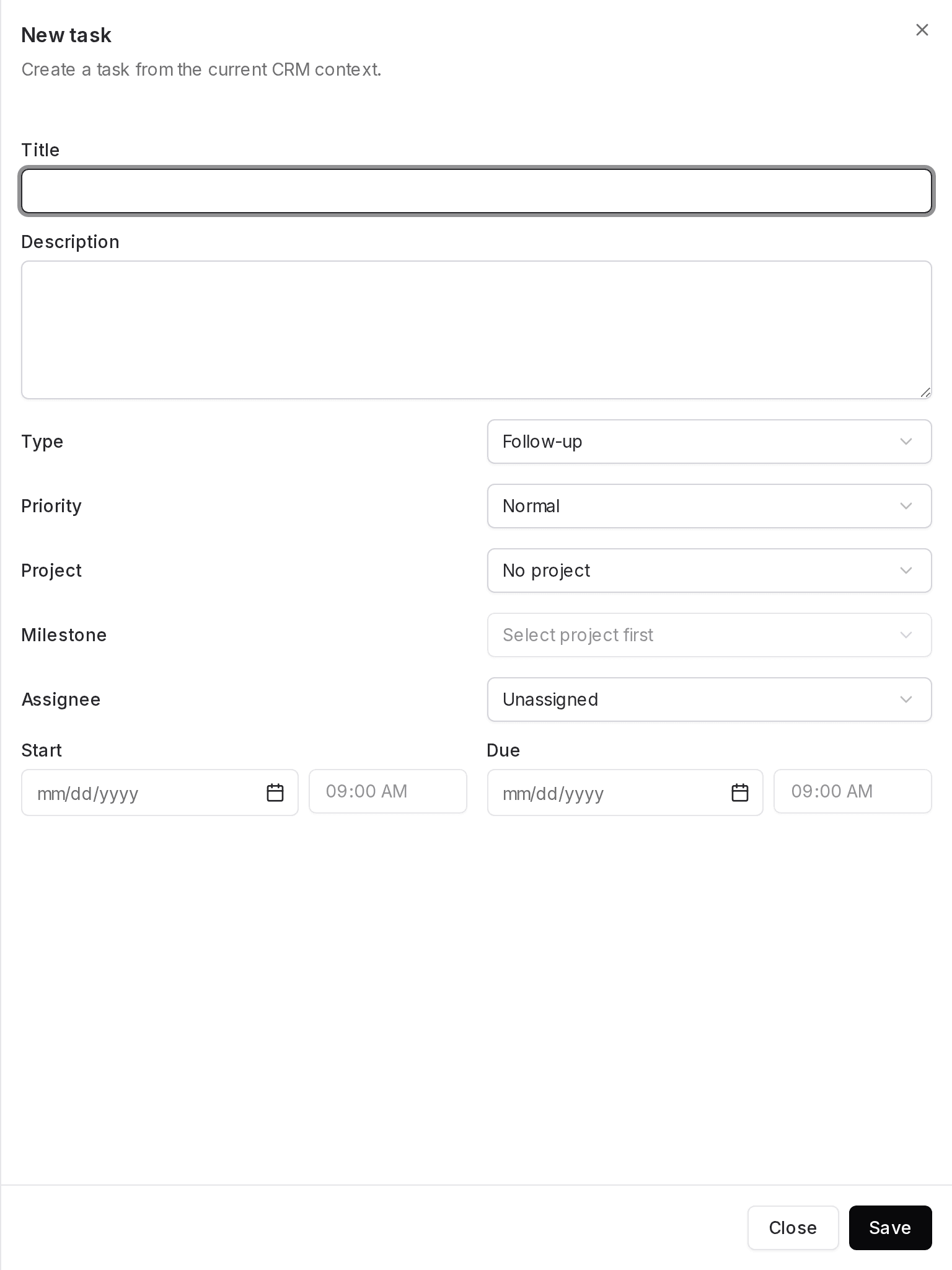
Milestone selection shows helper text 'Select project first', indicating Milestone selection is linked to Project selection.
Start and Due each combine a date input (placeholder 'mm/dd/yyyy') with a time input (shown '09:00 AM').
Prerequisites
If you plan to assign the task to a project or milestone, open Projects: coordinate delivery and workload signals and ensure the project and milestone you need exist and are available.
Procedure
-
Open the New task modal
From the Tasks page, start the Create workflow to open the New task modal.
- Click the Create button on the Tasks page, then choose Task to open the New task modal titled "New task" with the subtitle "Create a task from the current CRM context."
-
Enter the task fields
In the New task modal, fill the fields for the task using the inputs shown.
- Title — single-line text input at the top of the modal for the task title.
- Description — multi-line text area for the task description.
- Type — select control (the selected value is "Follow-up").
- Priority — select control (the selected value is "Normal").
- Project — select control (the selected value is "No project").
- Milestone — select control that shows helper text "Select project first", indicating Milestone selection is linked to Project selection (choose a Project before selecting a Milestone).
- Assignee — select control (the selected value is "Unassigned").
- Start — grouped inputs: a date input with placeholder "mm/dd/yyyy" plus an adjacent time input ("09:00 AM").
- Due — grouped inputs: a date input with placeholder "mm/dd/yyyy" plus an adjacent time input ("09:00 AM").
- None of the fields show a required-field marker.
- Fields in this form: Title, Description, Type, Priority, Project, Milestone, Assignee, Start and Due.
-
Finish
When you have completed entering fields, choose a modal action.
- Click Save or click Close using the controls at the bottom of the New task modal.