Create a project and add team members
Create a project with ownership, dates, budget, summary, and initial team membership.
Key guidance
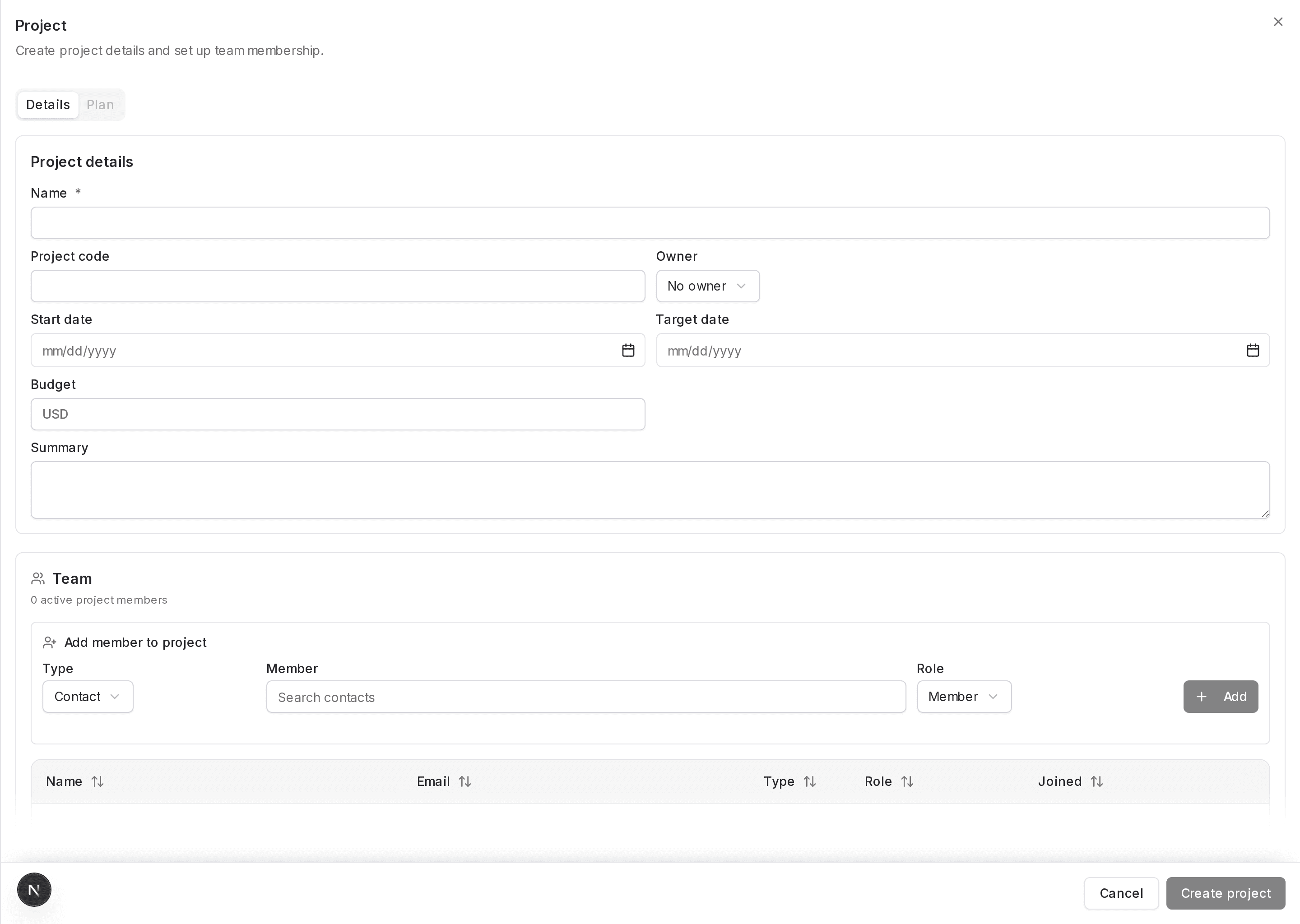
Name is required (label shows "Name *").
Start date and Target date are shown side-by-side and include the mm/dd/yyyy placeholder and a date control.
Budget displays a USD hint in the input.
The Project modal contains a Project details section followed by a Team section.
Team member controls are grouped as Type, Member, Role, and Add.
Procedure
-
Open the Project modal
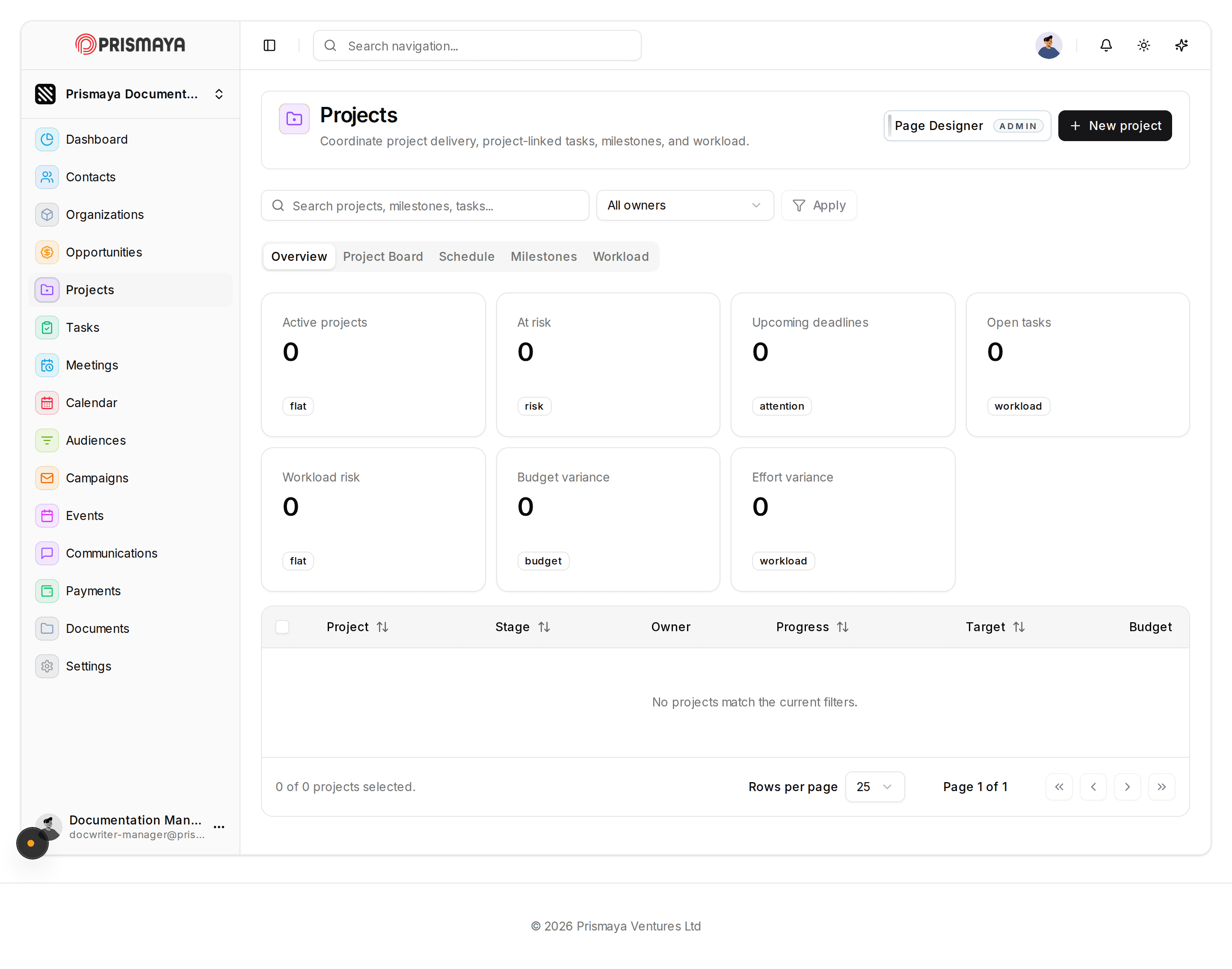
On the Projects page, click + New project to open the Project modal.
- The Project modal is titled "Project" and opens with the Details tab active; a Plan tab is present but not active.
-
Enter the project Details
Fill the Details fields in the Project modal before saving.
- Complete field inventory for the Details area: Name *; Project code; Owner; Start date; Target date; Budget; Summary.
- Name * is marked required. The other Details fields are not marked as required.
- Start date and Target date are shown side-by-side and include the mm/dd/yyyy placeholder; a date control (Choose date) is available for these fields.
- Budget and Summary are shown beneath the date fields in the Details area.
- Fields in this form: Name *, Project code, Owner, Start date, Target date, Budget, Summary, Type, Member, Role and Add.
-
Add initial team members
In the Team section, use the Add member to project controls to add each member you want on the project.
- Team controls are grouped as Type, Member, Role, and the small + Add button.
- The Member field shows the placeholder 'Search contacts'.
- The Team header displays the active member count text.
-
Save or cancel project creation
When you have entered details and added any team members, choose whether to save or cancel.
- To save the new project, click Create project.
- To close the modal without saving, click Cancel.