Create an event
Create an event with timing, location, organiser, booking, recurrence, and attendance settings.
Key guidance
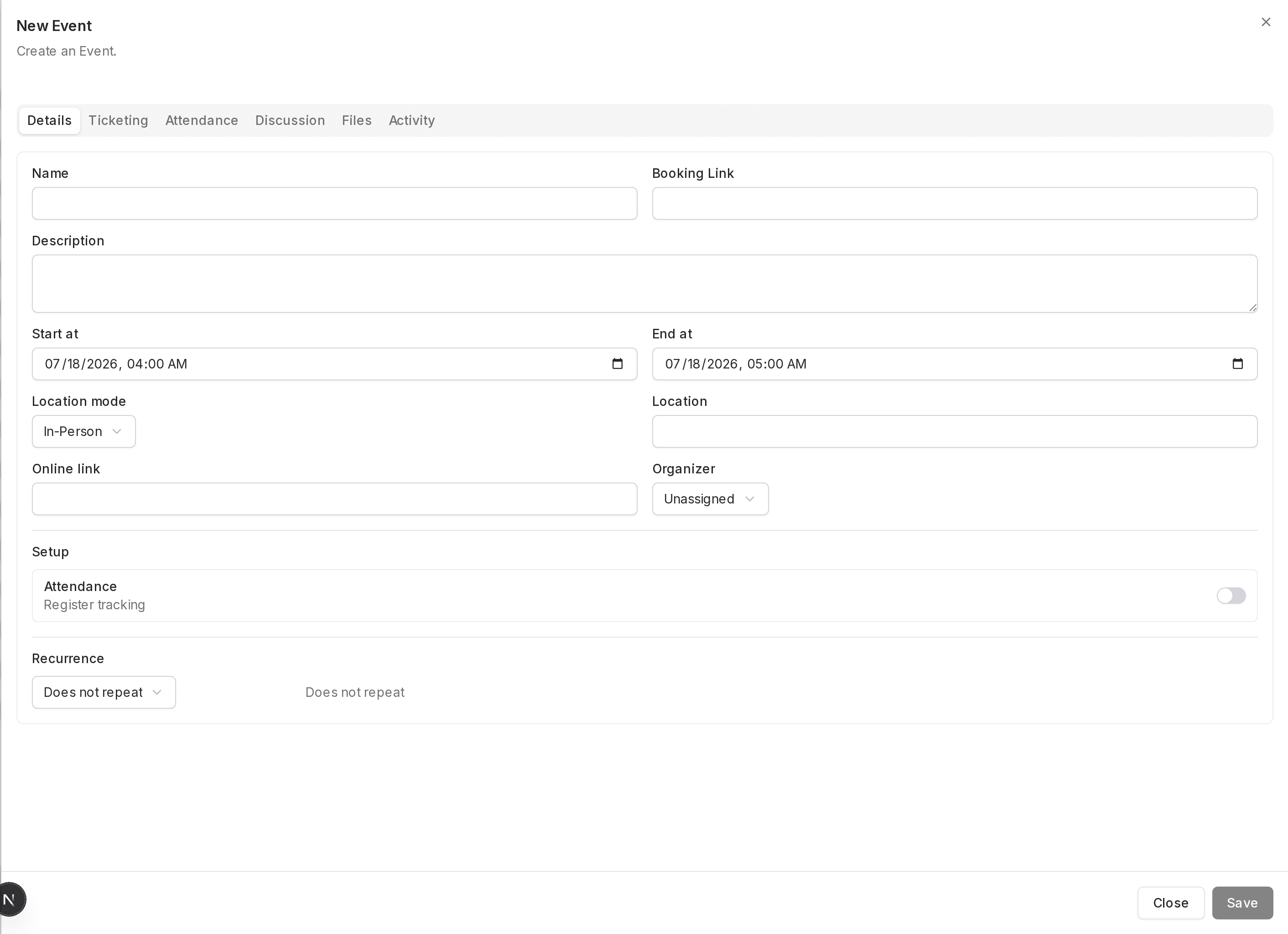
Start at and End at are displayed side-by-side in the same row.
Location mode and Location are displayed together in the same row.
Online link and Organizer are displayed together in the same row.
The Attendance label appears under a Setup header with a toggle control aligned to its right (Attendance Register tracking).
The Details, Ticketing, Attendance, Discussion, Files, and Activity tabs are available.
Procedure
-
Open the New Event form
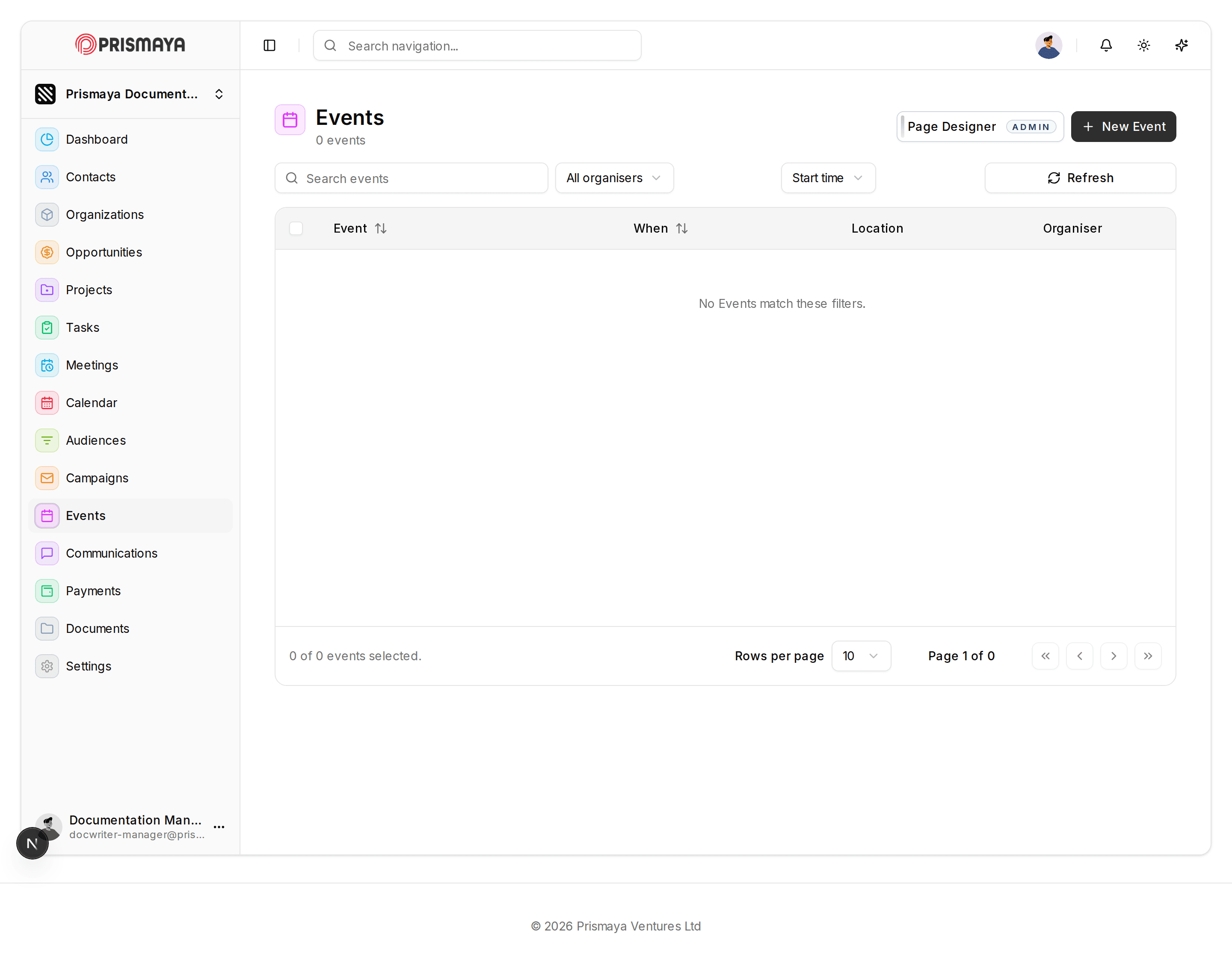
On the Events page, click the + New Event button to open the New Event modal.
- Start from the Events listing page.
-
Enter the event Details
In the New Event modal, enter values into the fields in the Details area using the controls.
- Complete the following fields in the Details area (listed with the control types):
- Name — text field.
- Booking Link — text field.
- Description — textarea.
- Start at — date/time control (displayed side-by-side with End at).
- End at — date/time control (displayed side-by-side with Start at).
- Location mode — dropdown (displayed in the same row as Location).
- Location — text field (displayed in the same row as Location mode).
- Online link — URL field (displayed in the same row as Organizer).
- Organizer — dropdown (displayed in the same row as Online link).
- Attendance Register tracking — toggle control shown under the Setup header with the Attendance label to its left.
- Recurrence — dropdown (the dropdown area displays descriptive text to its right).
- The other Details fields are not marked as required.
- Fields in this form: Name, Booking Link, Description, Start at, End at, Location mode, Location, Online link, Organizer, Attendance Register tracking and Recurrence.
-
Use the modal action buttons
When you have finished editing the Details, use the modal action buttons to complete the interaction.
- Click Save or click Close using the action buttons shown at the bottom-right of the New Event modal.