Dashboard overview and role-aware insights
Understand the role-aware dashboard, current-work signals, and shortcuts into the CRM.
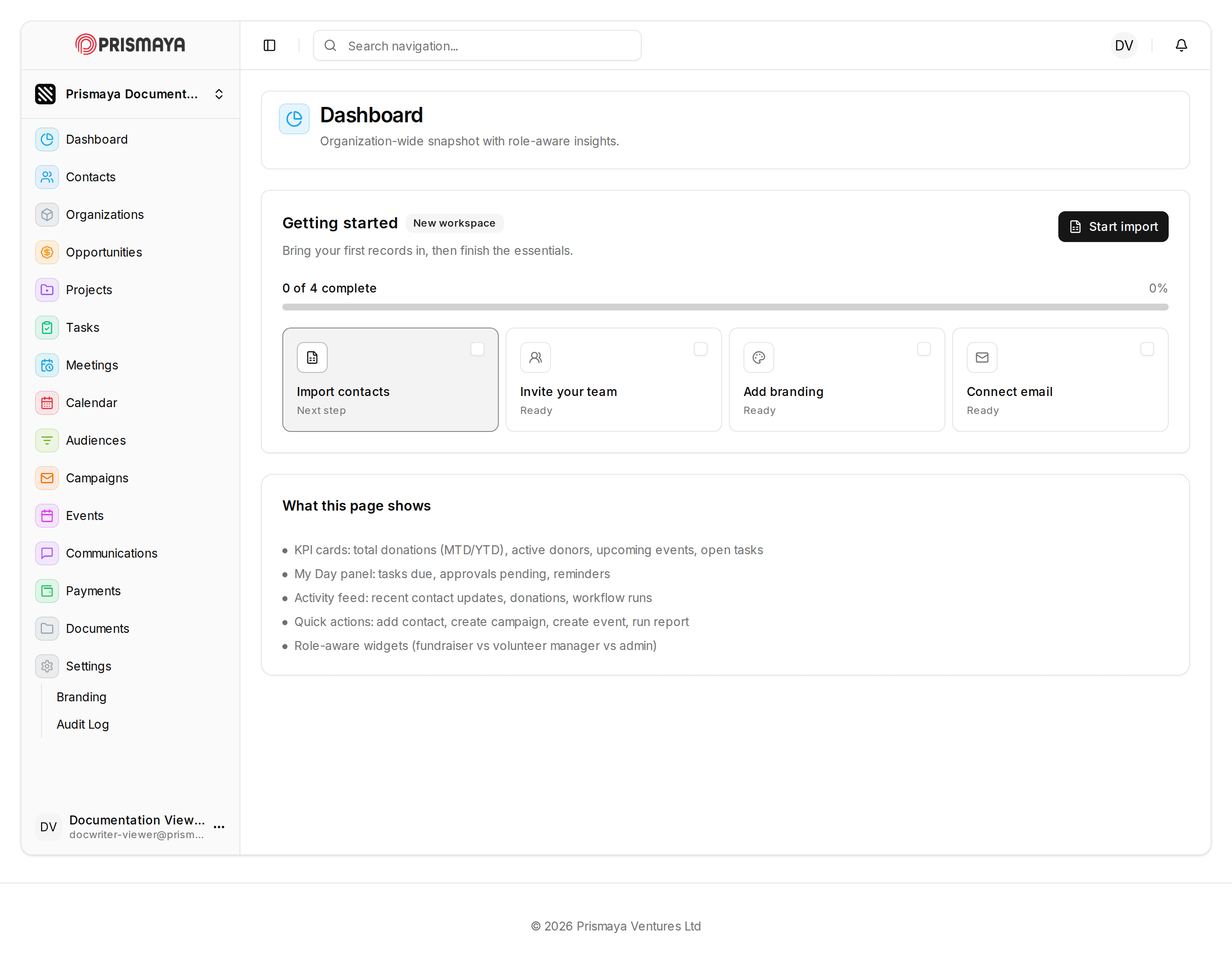
Dashboard at a glance
The page title is Dashboard and the page provides an organization-wide snapshot with role-aware insights.
Key areas on the page include KPI cards, a My Day panel, an activity feed, quick actions, and the Getting started section for initial setup tasks.
Getting started and progress
The Getting started area helps you bring your first records in and complete essential setup steps.
The progress indicator shows 0 of 4 complete and the progress bar reads 0%.
There are four task cards in Getting started and each shows a short status label: Import contacts — Next step; Invite your team — Ready; Add branding — Ready; Connect email — Ready.
A control labeled Start import appears to the right of the Getting started section.
What this page shows
KPI cards: total donations (MTD/YTD), active donors, upcoming events, open tasks.
My Day panel: tasks due, approvals pending, reminders.
Activity feed: recent contact updates, donations, workflow runs.
Quick actions: add contact, create campaign, create event, run report.
Role-aware widgets: the dashboard includes widgets tailored for different roles (examples shown: fundraiser vs volunteer manager vs admin).
Navigation and documented surfaces
The Dashboard page is the main content area and is active.
Left navigation shows Dashboard highlighted, indicating the Dashboard nav item is active.
left navigation labels include: Contacts, Organizations, Opportunities, Projects, Tasks, Meetings, Calendar, Audiences, Campaigns, Events, Communications, Payments, Documents, Settings (with the Branding and Audit Log subitems visible).
Footer and account area
The top bar contains a search input with placeholder text 'Search navigation...' and a user avatar area with notifications.
Footer text on the page reads: © 2026 Prismaya Ventures Ltd.
Tasks: list, search, and task fields
Understand the Tasks list page: controls for scanning, searching, and filtering tasks, the table columns shown for each task row, and pagination controls.
Audiences: reusable recipient definitions
Understand reusable recipient definitions and how audiences support Prismaya engagement workflows.