Tasks: list, search, and task fields
Understand the Tasks list page: controls for scanning, searching, and filtering tasks, the table columns shown for each task row, and pagination controls.
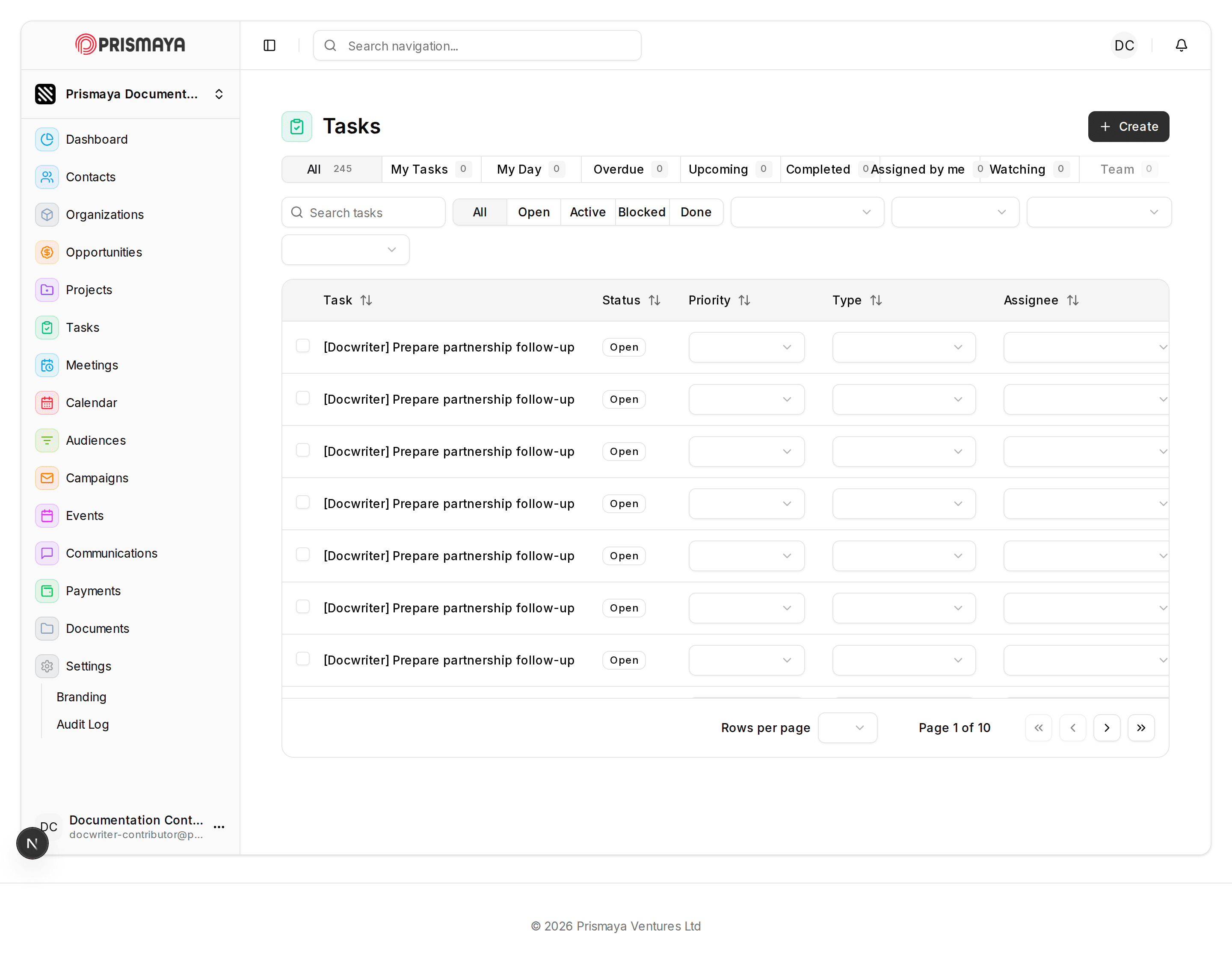
The Tasks page provides a table view of individual task records so you can scan, filter, and find work items across the CRM. Use the page-level filters and the search box to narrow results, or use the + Create button to start a new task from the list view.
Main content and controls
The page title 'Tasks' appears at the top of the main content area.
A '+ Create' button is available at the top-right of the main content area for creating a new task.
A filter/chip row appears below the title with items including: All, My Tasks, My Day, Overdue, Upcoming, Completed, Assigned by me, Watching, and Team; the All chip appears active.
A left navigation rail is and the Tasks navigation item appears in that list.
Search and state filters
A search input with the placeholder text 'Search tasks' is provided for free-text lookup.
A row of state-filter buttons is available with the labels: All, Open, Active, Blocked, Done; All appears selected.
Table columns and rows
The table includes these column headers: Task, Status, Priority, Type, and Assignee.
The Status column aligns with status badges for each task row; several badges read 'Open'.
The Details fields Priority, Type, and Assignee are not marked as required.
Pagination and navigation
Pagination controls appear at the bottom of the table and include a 'Rows per page' control, a page indicator reading 'Page 1 of 10', and first / previous / next / last page buttons.
Related pages
Create a task from CRM context: work/tasks/create
Projects: coordinate delivery and workload signals: work/projects
Contacts: list, search, filters, and column customization
Understand the Contacts list view in Prismaya: what information is presented, what list controls are visible, and which table columns and summary metrics appear on the page.
Dashboard overview and role-aware insights
Understand the role-aware dashboard, current-work signals, and shortcuts into the CRM.